

Documentation Index
Fetch the complete documentation index at: https://docs.get-nexus.app/llms.txt
Use this file to discover all available pages before exploring further.
Guide
Install requirements
EKS requires the AWS CLI and kubectl CLI.
- Download and install the AWS CLI
- Download and install kubectl CLI
Create the cluster
For this guide, we will use standard settings with the EBS CSI driver.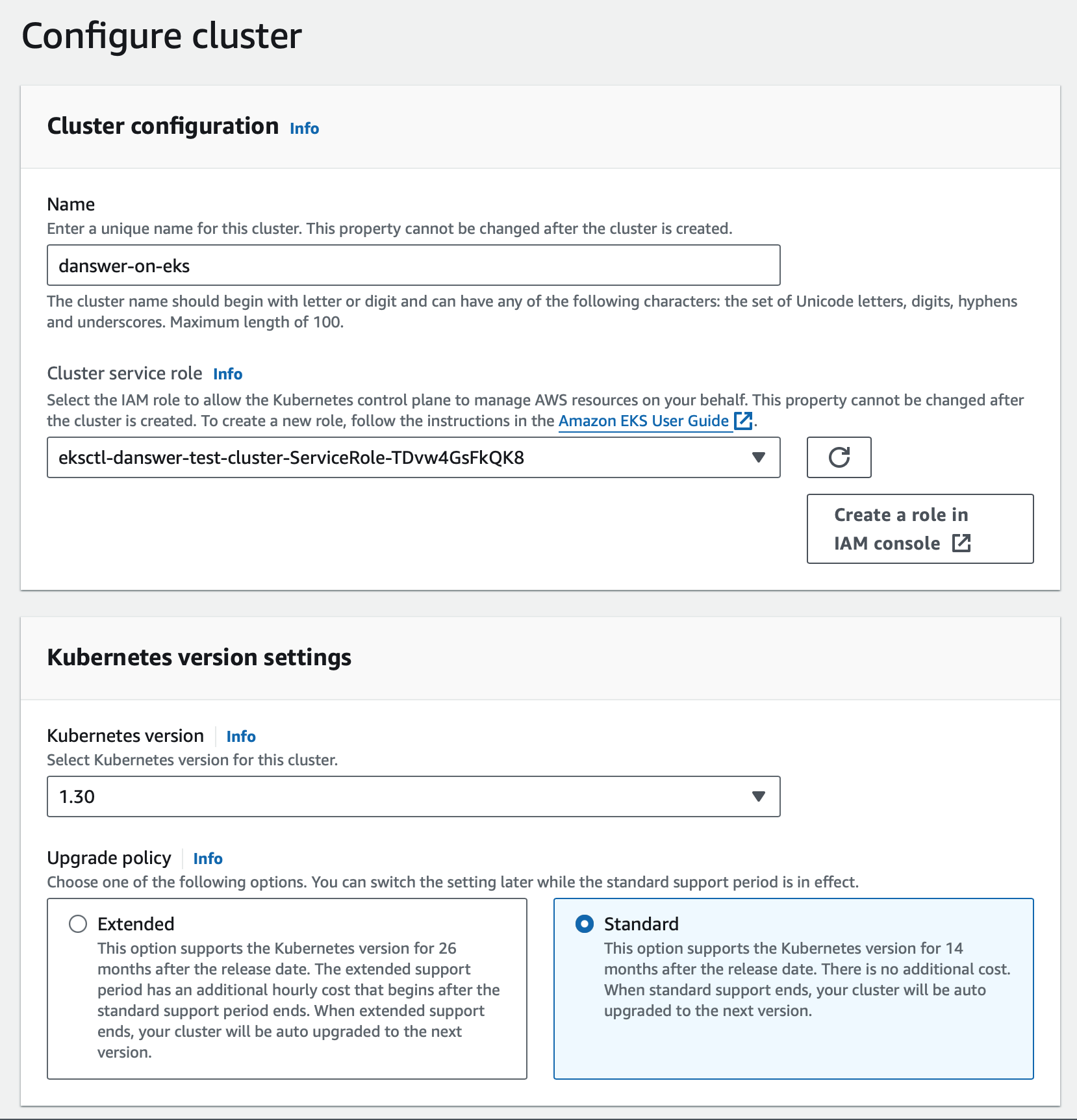
- Navigate to Elastic Kubernetes Service (EKS) and create a new cluster
- For Cluster service role, create a new IAM role with a descriptive name like
Nexus-eks-cluster-role
If you do not see the newly created role in the dropdown, click the refresh button in the UI.
- For Kubernetes version, select a version with standard support
- Choose Standard upgrade policy
- Add the Amazon EBS CSI Driver add-on for Nexus’s
Persistent Volume Claims - Keep the other default add-ons enabled
- Review and click Create
Add nodes
Once the cluster is active, add worker nodes where Nexus services will run.
- On the Cluster page, select the Compute tab and click Add node group
- Provide a Name for the group (e.g.,
Nexus-node-group) - For Node IAM role, either select an existing role used by your organization or create a new one.
Ensure the role has the
AmazonEBSCSIDriverPolicy attached so that PVCs can be fulfilled. If creating a role,
add this policy in addition to the default policies.- Replace the Instance types with
c5.2xlargemachines (orc5.4xlargeif you plan to scale beyond 100k documents) - Set Volume size in the 200GB - 800GB range depending on your document count
- For most setups, set the Desired size and Minimum size to 1. You can increase these later to scale up.
- Maximum unavailable can remain at the default
- Keep the default networking configuration and click Create
Create and connect a user
We will need an IAM user with CLI access to manage AWS and the cluster.
- Navigate to the IAM Dashboard, select Users in the left sidebar, and click Create user
-
Give the user a descriptive name (e.g.,
Nexus-eks-user) - Under permissions, click Attach policies directly and attach:
-
AmazonEKSClusterPolicy -
AmazonEKSServicePolicy - Click Create user
- On the user’s page, click Create access key and follow the prompts.
- Select the Command Line Interface (CLI) option during creation.
- Navigate back to the EKS cluster and select Access and then Create access entry
- In IAM principal, select the IAM ARN we just created, then click Next
- For Access policies, set Policy name to
AmazonEKSClusterAdminPolicy, then click Next and Create
Fetch kubeconfig
Log in to the AWS CLI and provide the access key and secret key from the IAM user we just created:Configure your kubeconfig to connect to the cluster by filling in the
region-code and cluster-name:Reference AWS EKS kubeconfig docs.
Install Nexus services
The Nexus Helm chart packages all the required services (API, web, PostgreSQL, Vespa, etc.)
into a single deployment. By default, persistent volumes will be created for stateful services.First, ensure the Add the Nexus Helm repository:Create a dedicated namespace and install Nexus:This will pull the latest Nexus chart and deploy all dependencies.
gp2 storage class is set as the default storage class (required for PVCs):Verify the installation
Running state before accessing Nexus.To check the API server logs (often the last to become ready):Access Nexus
Upgrading
To upgrade Nexus services, first update the Helm repository:Uninstalling
To remove the Nexus services:Next Steps
Configure Authentication
Set up authentication for your Nexus deployment with OAuth, OIDC, or SAML.
More Nexus Configuration Options
Learn about all available configuration options for your Nexus deployment.