

Configure Nexus with OpenID Connect (OIDC) authentication. Available with common identity providers such as Okta and Microsoft Entra ID (Azure AD). This guide will walk you through the setup process for Okta. Other identity providers will have a similar process. Please contact us if you need help with a different identity provider.Documentation Index
Fetch the complete documentation index at: https://docs.get-nexus.app/llms.txt
Use this file to discover all available pages before exploring further.
Guide
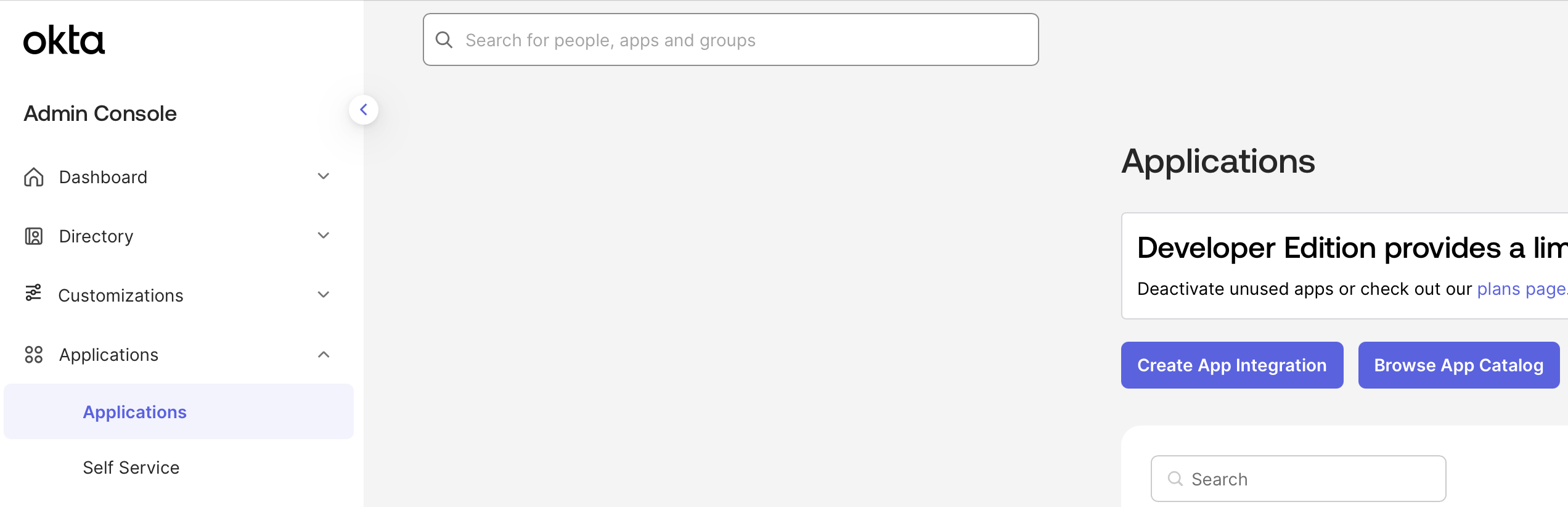
Configure Okta Application
Select OIDC and Web Application.Name your application Determine whether all users or select groups may access Nexus or skip this step and assign users later.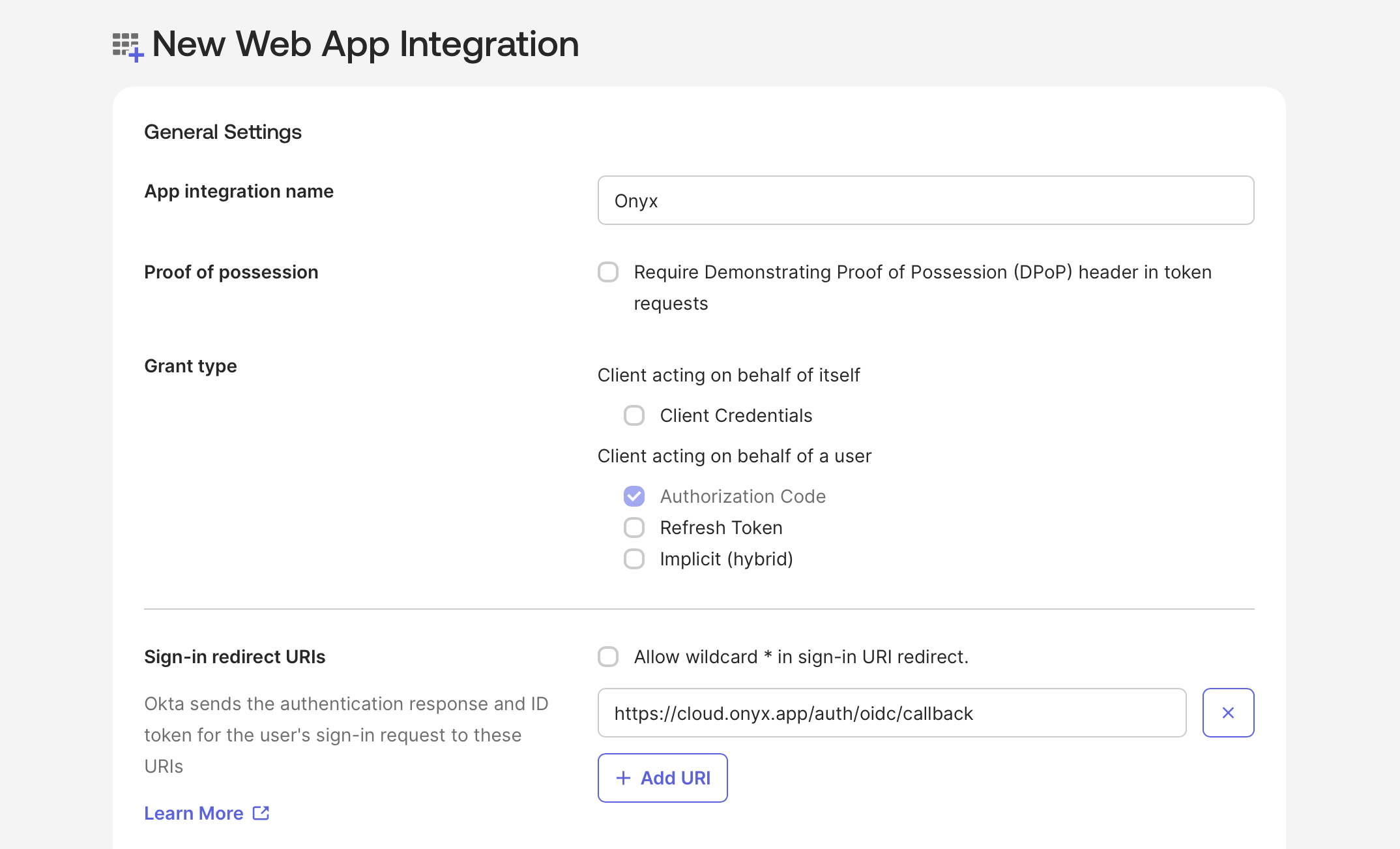
Nexus.Add a Sign-in redirect URISave OIDC Credentials
Create the new Application and save the Client ID and Client Secret.Also note your Okta Base URL in the format of 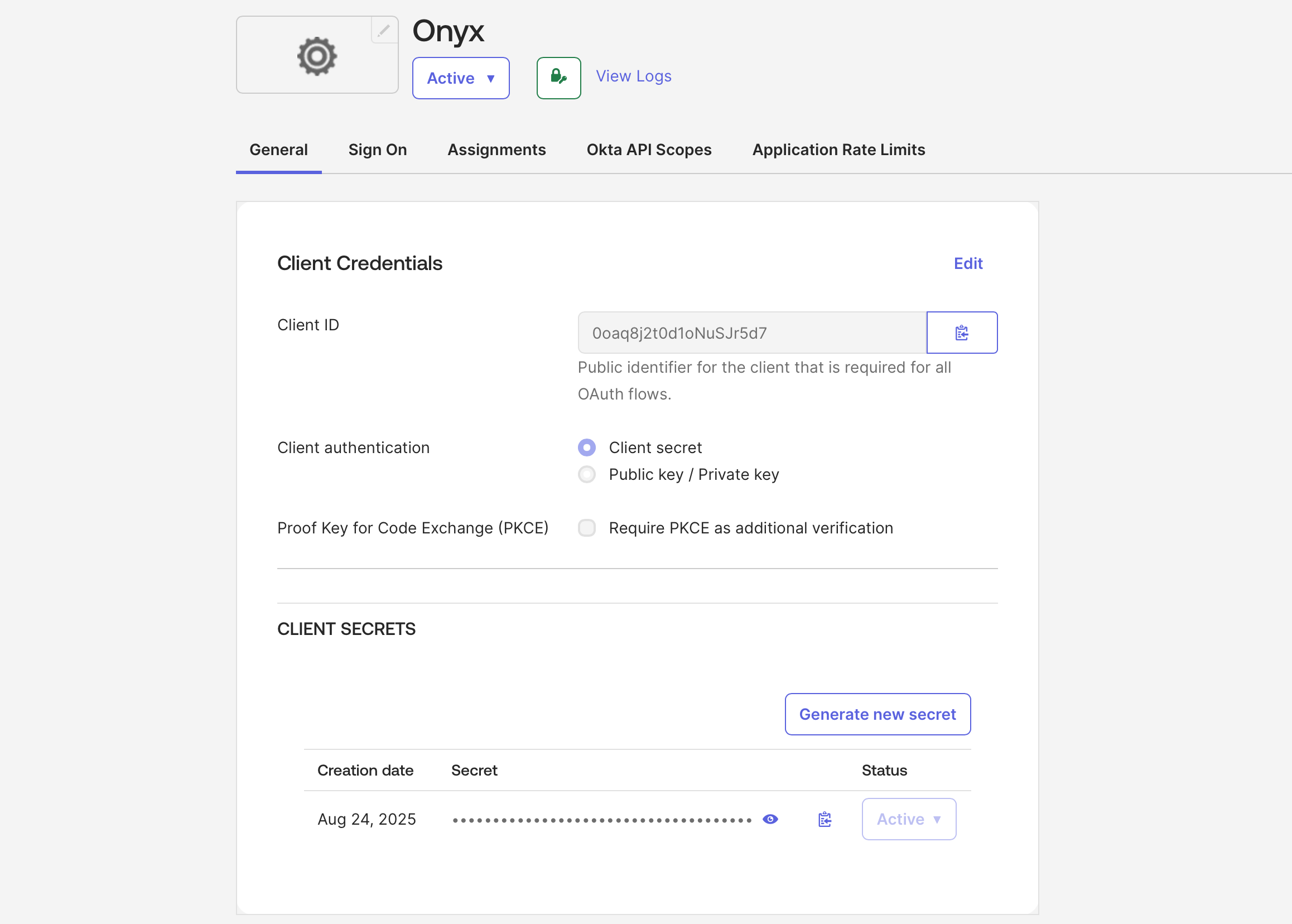
https://<YOUR_ORG_NAME>.okta.com.After saving your application,
you can upload the Nexus logo or your white-labeled logo by clicking the gear icon next to the app title Nexus
Configure Nexus for OIDC
Configure Nexus with the following environment variables in your
.env or values.yaml file (Docker and
Kubernetes, respectively)..env
If you’re using Docker but don’t have a
.env file,
copy Nexus/deployment/docker_compose/env.prod.template to a new .env file in the same directory.values.yaml