

The image generation action allows your Agents to create images based on text prompts. Once configured, any AI model in Nexus can invoke this action to generate images using supported image generation models.Documentation Index
Fetch the complete documentation index at: https://docs.get-nexus.app/llms.txt
Use this file to discover all available pages before exploring further.
Supported Models
| Model | Provider |
|---|---|
| GPT Image 1.5 | OpenAI / Azure OpenAI |
| GPT Image 1 | OpenAI / Azure OpenAI |
| DALL-E 3 | OpenAI / Azure OpenAI |
| Nano Banana | Vertex (Google) |
| Nano Banana Pro | Vertex (Google) |
Configuration
Navigate to Image Generation
Go to the Admin Panel and select Image Generation under the Configuration section.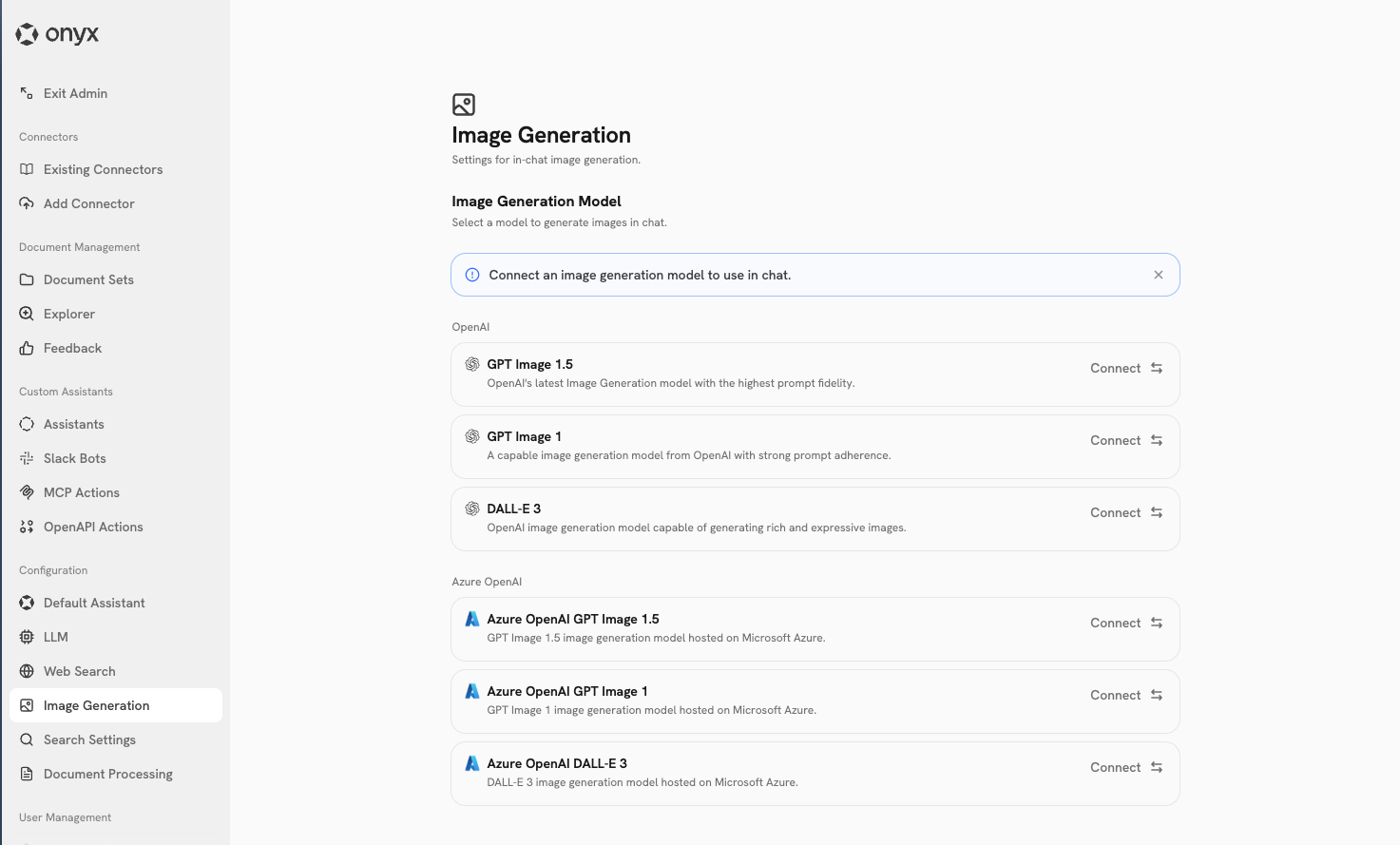
Connect a Model
The page displays available models grouped by provider (OpenAI, Azure OpenAI and Vertex).Click Connect on any model to configure it. A modal will open where you can set up credentials:The last configured model will automatically become the Current Default.
- OpenAI
- Azure OpenAI
- Vertex (Google)
- Use existing API key: Select from previously configured OpenAI API keys
- Enter new API key: Add a new OpenAI API key